
Documentation Index
Fetch the complete documentation index at: https://cdialai-0073e50a.mintlify.app/llms.txt
Use this file to discover all available pages before exploring further.
Overview
Indigenius makes it easy to build end-to-end voice agents, which we call agents. Agents support live, two way conversations. You can call an assistant or have it call you. Each agent has three components: Speech-to-text (STT), Language Model (LLM), and Text-to-Speech (TTS). Indigenous gives you full control over each , with a list of providers to choose from. In this quick start, you’ll learn to:- Create an agent in the indigenous dashboard
- Pick your STT, LLM, and TTS providers.
- Attach a phone number
- Make your first call over the web or by phone
Prerequisites
Get started by creating an agent
1. Open the Indigenius Dashboard
Go to dashboard.indigenius.ai and log in to your account.2. Create Your Agent
In the Indigenius dashboard, to create a new agent you follow these steps: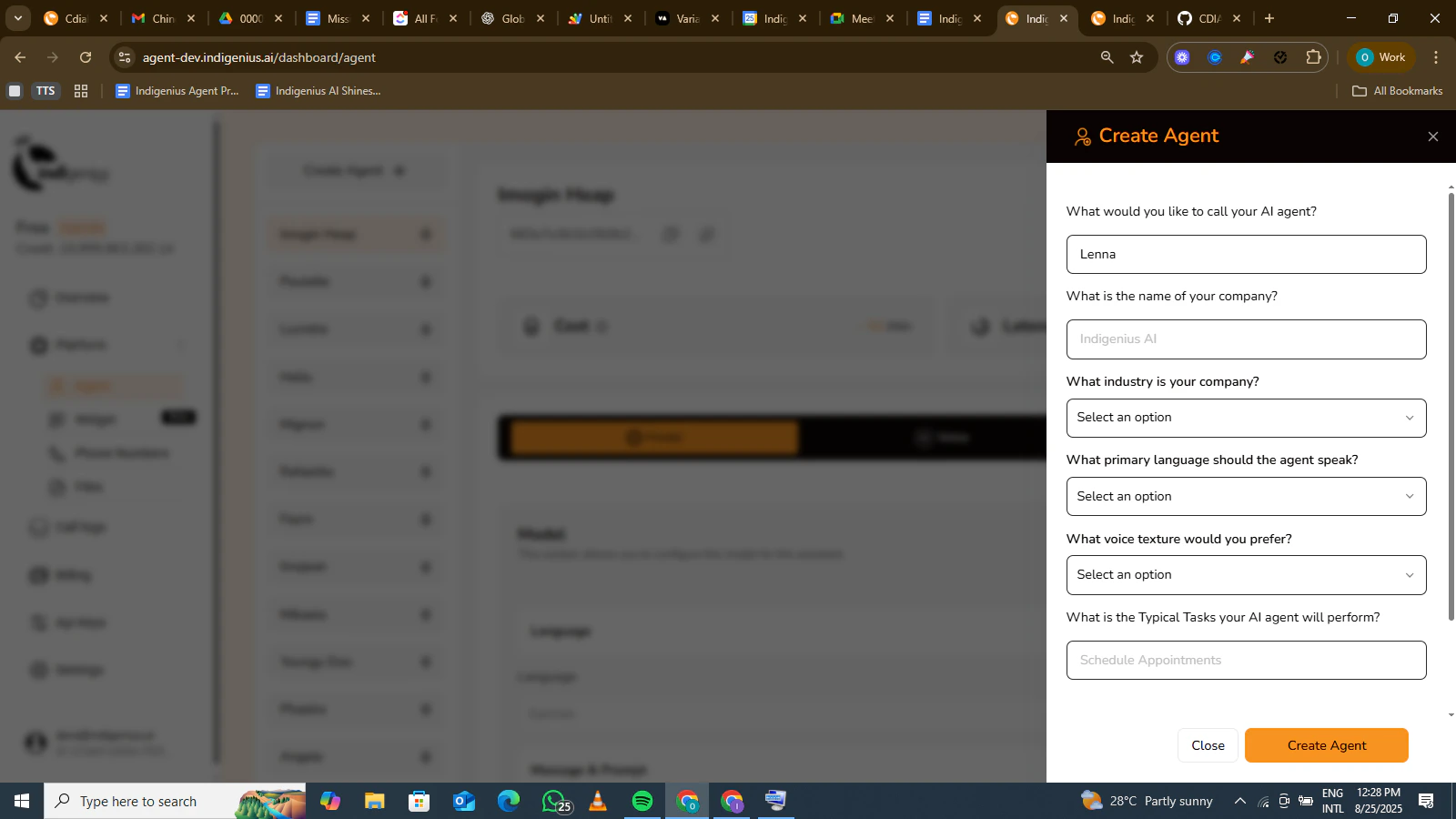
-
Agent Name
Select a name for the agent or use any of the pre-filled names.
Prompt: What would you like to call your AI agent? -
Company Name
Input the name of your company.
Prompt: What is the name of your company? -
Industry
Select the industry your company functions in.
Prompt: What industry is your company? -
Language
Choose the primary language you want your agent to speak.
Prompt: What primary language should the agent speak? -
Voice Texture
Determine the voice texture you prefer for your agent (e.g., Male or Female).
Prompt: What voice texture would you prefer? -
Typical Tasks
Instruct the agent to perform specific tasks.
Prompt: What are the typical tasks your AI agent will perform?
3. Configure your agent
- First message
- System prompt
4. Configure the models for your agent
- Set the LLM (Large Language Model)
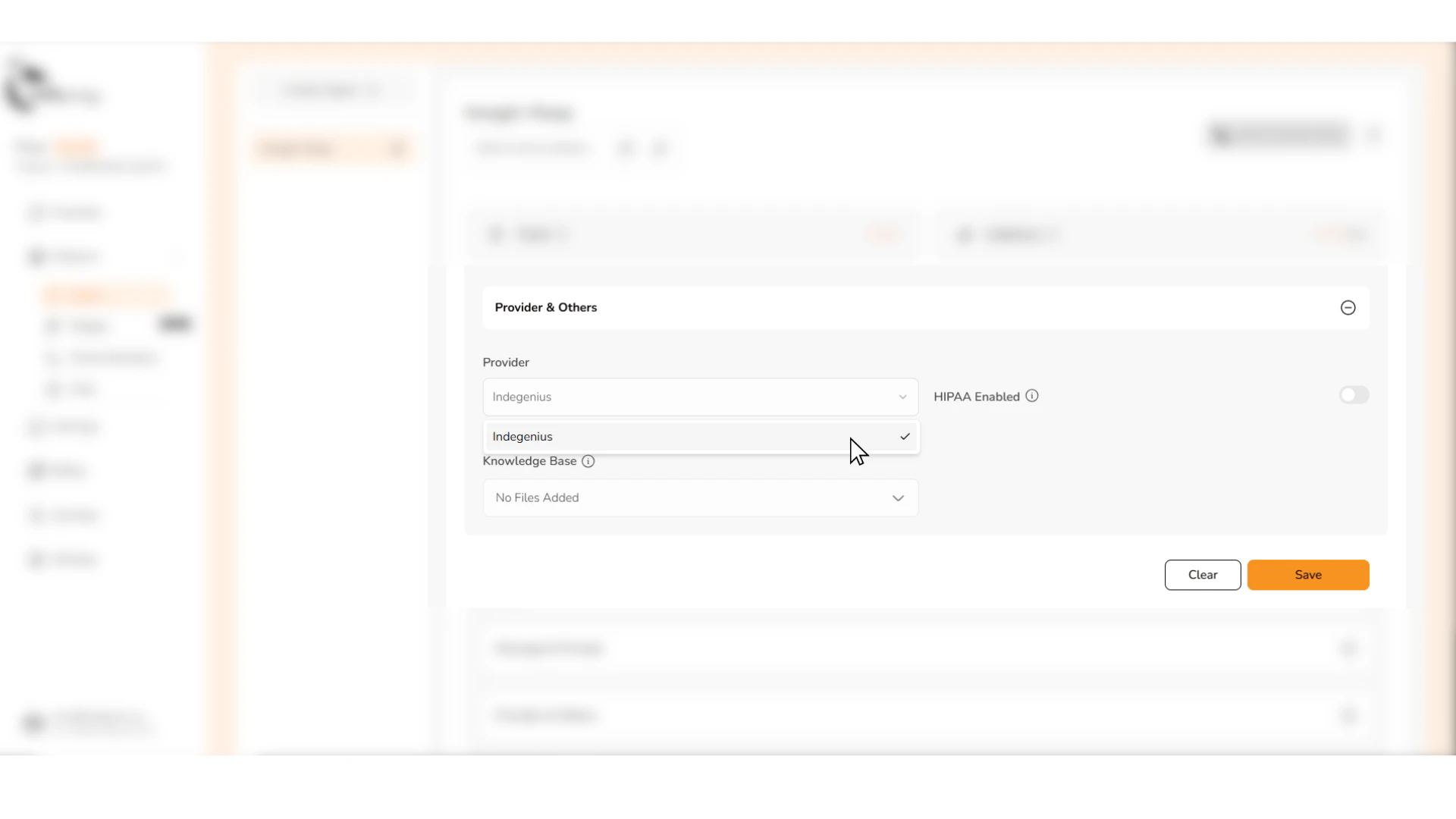
- Set Language
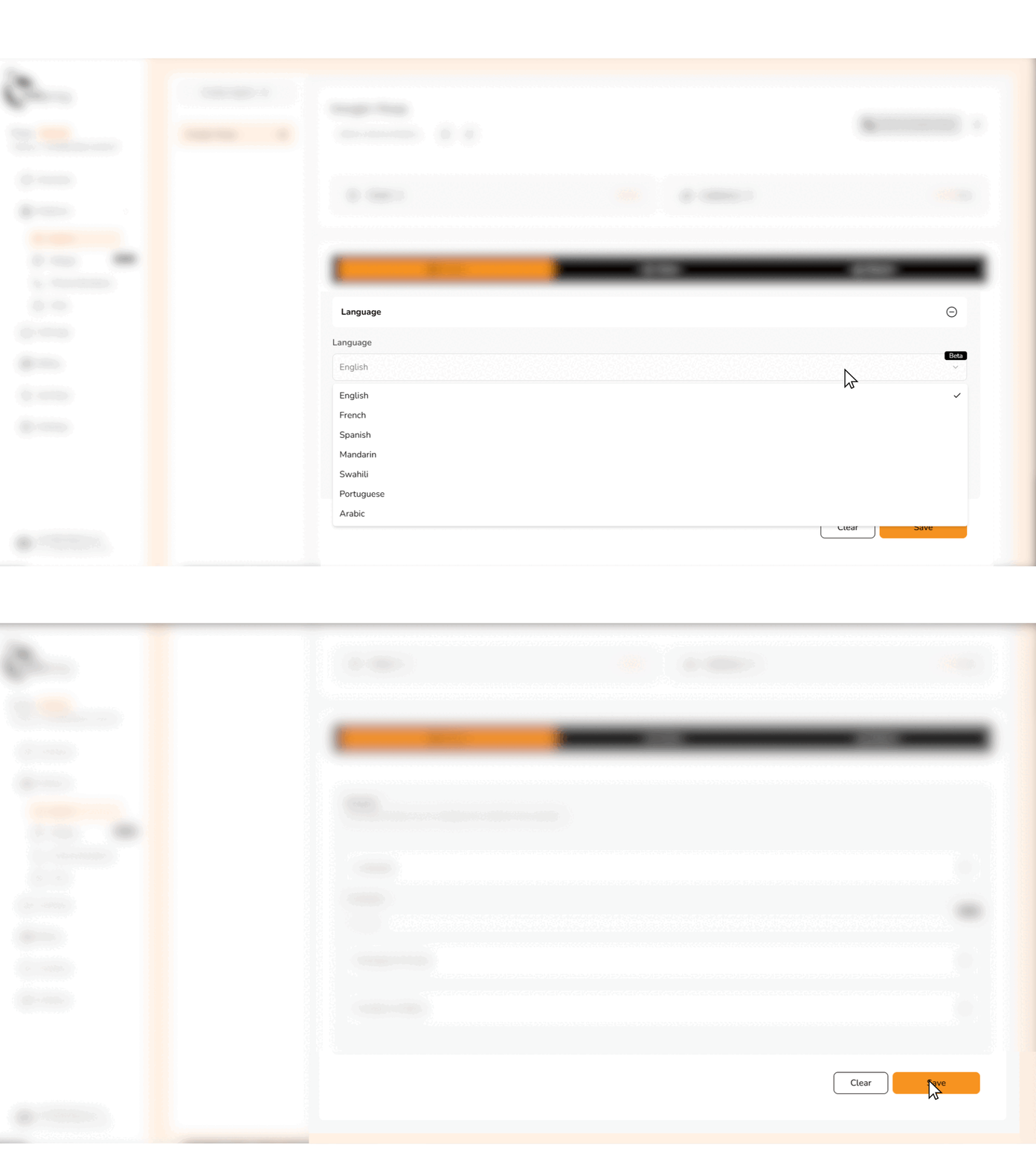
5. Make an inbound call (call your agent)
- Call your agent in the dashboard
.gif?s=b98fd0352d10fc9bbe52aafa4cff6a30)
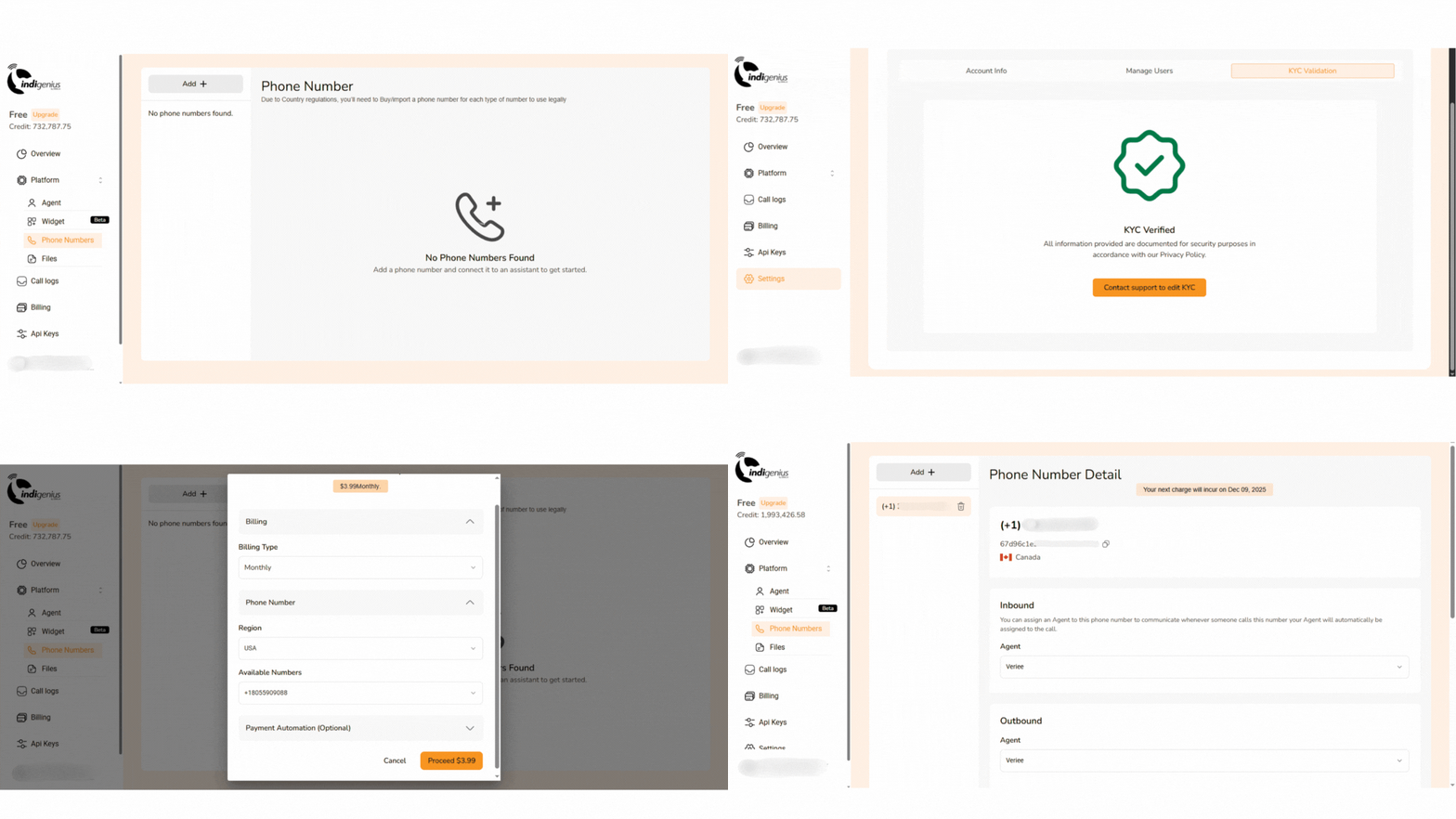
- Call your agent by phone
- Visit the phone number screen
- Complete your KYC, once approved return to the phone number screen
- Select your preferred region and preferred number and proceed to make payment.
-
Assign your preferred agent for inbound or outbound calls.
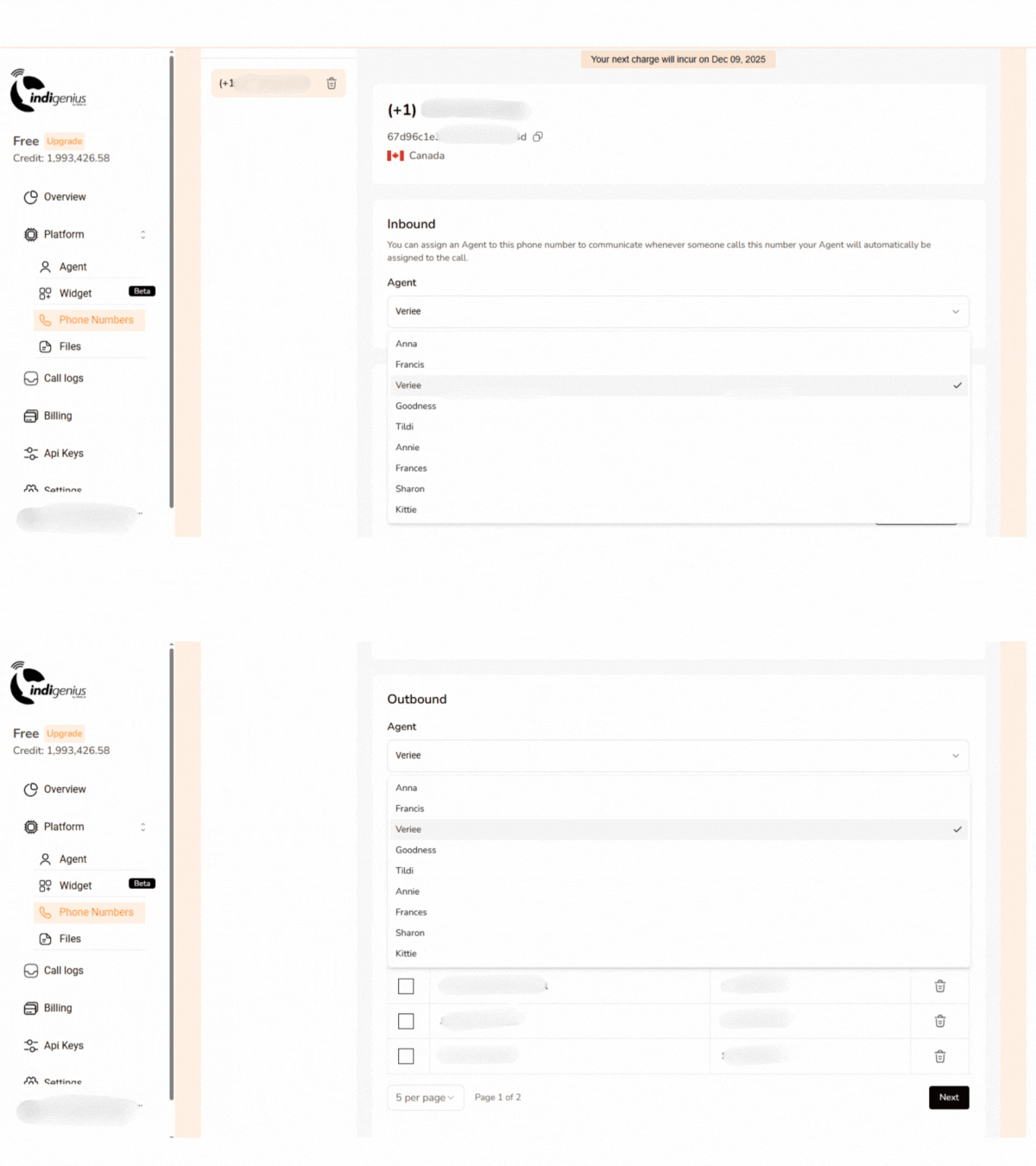
6. Make an outbound call (agent calls you)
- Set your phone number and agent
- Select the phone number you want to initiate the outbound call.
- Upload the phone numbers you want to call.
- Select the agent you want to initiate the call.
- Make the outbound call