
Documentation Index
Fetch the complete documentation index at: https://cdialai-0073e50a.mintlify.app/llms.txt
Use this file to discover all available pages before exploring further.
Purchase a New Number
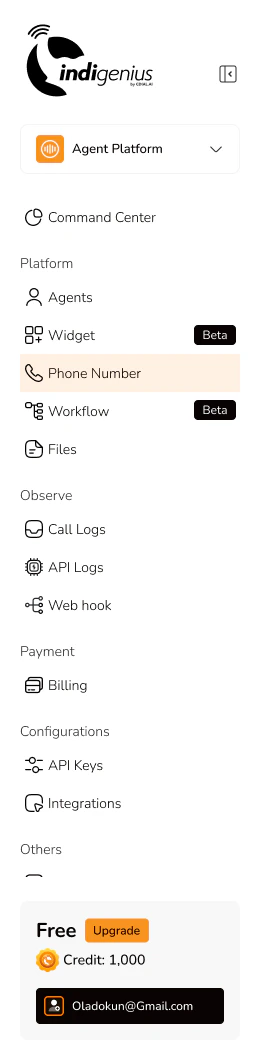
Users can search, purchase, and assign phone numbers based on location. Purchased numbers are immediately usable and linked to the user’s account, once KYC application is approved.- Visit the Phone Number section.
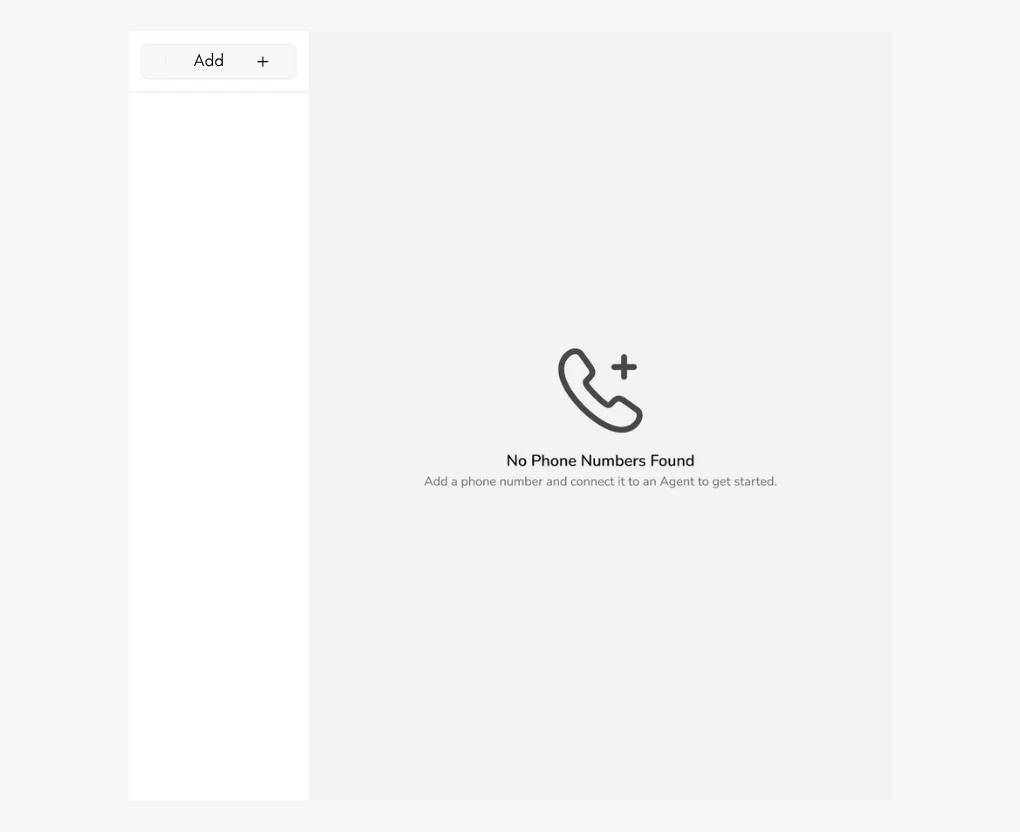
- Click the Add button (top of the sidebar).,
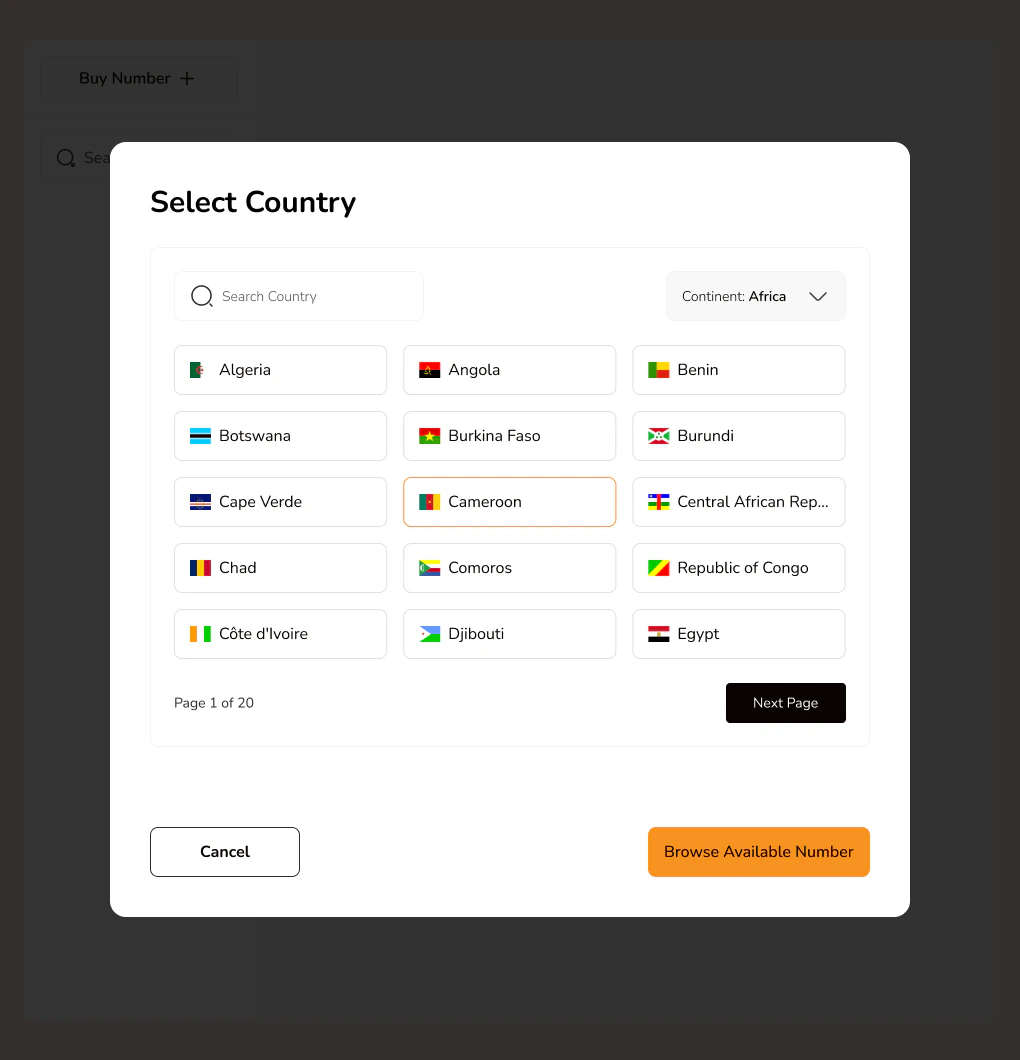
- Search and filter numbers by continent and country in the Select Country modal (page view)
- Choose from a list of available number.
- Select billing type (monthly/yearly) and Toogle Automate Subscription.
.png?fit=max&auto=format&n=06ZyY2Dqpi5igYE0&q=85&s=dbfb99cbb8f205e34102d848ae7f7f5c "Add (1).png")
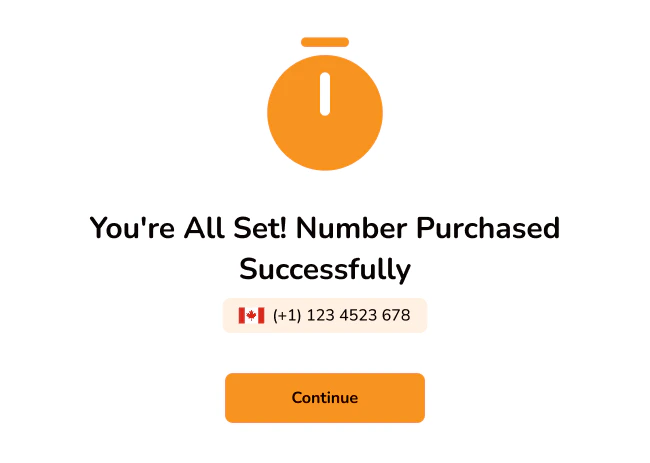
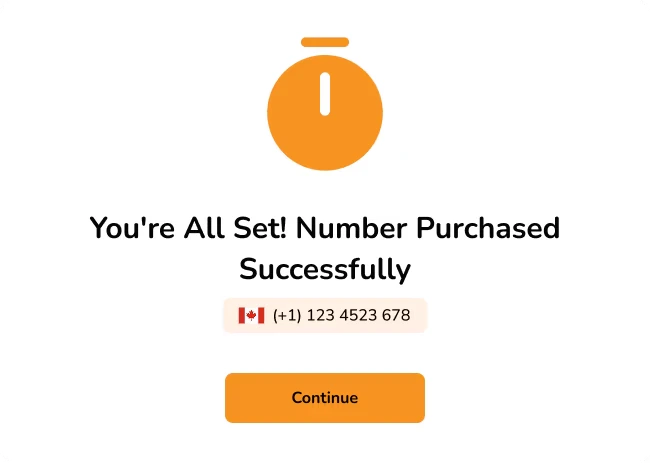
- Confirm the purchase and receive notification (success or pending KYC).
Assign Agent to Your Phone Number
-
Select any of your created agents for inbound calls.
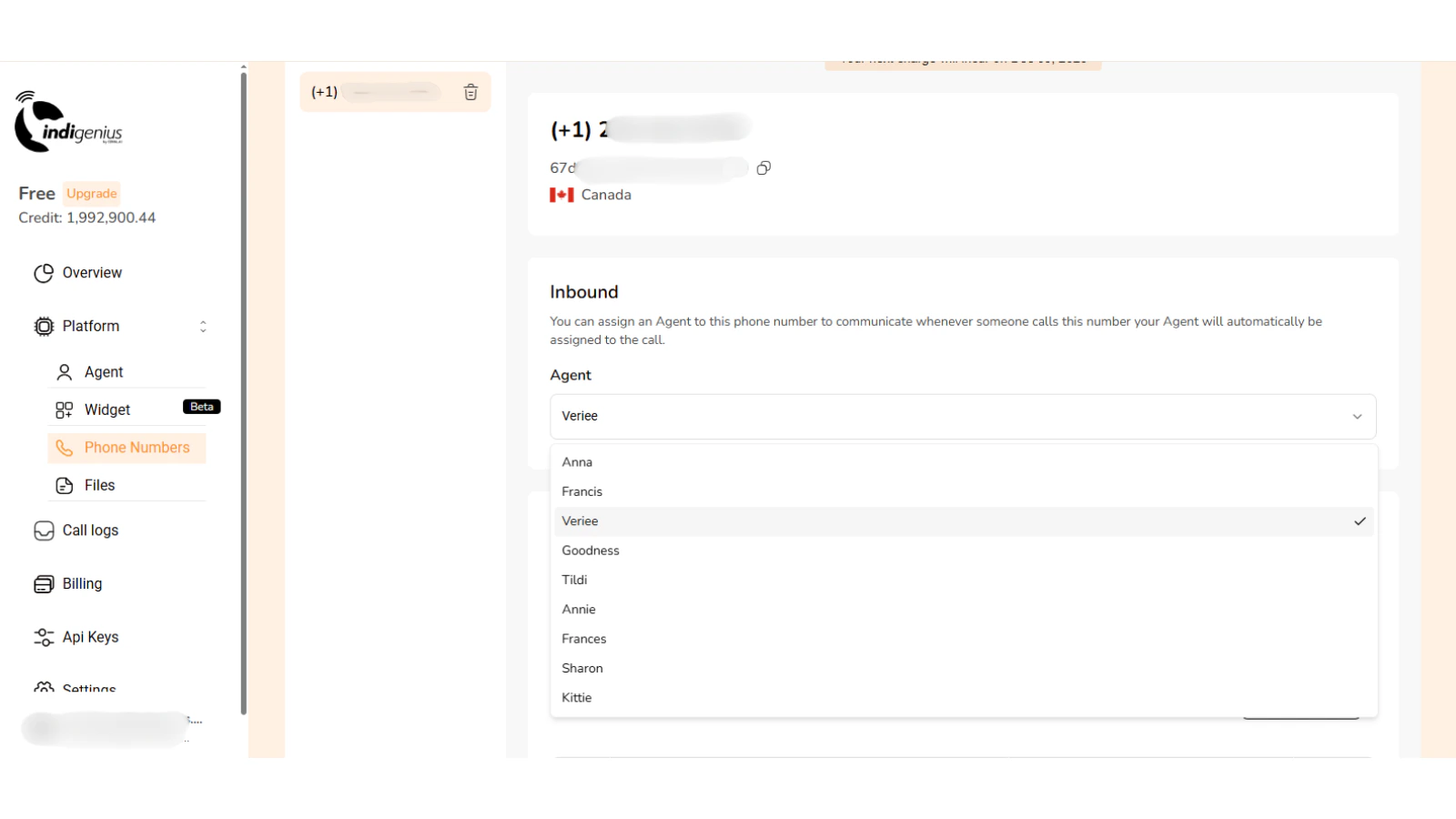
- Whenever this number is called, the selected agent will pick up and have a conversation with the end user.
Make an Outbound Call (Agent Calls Users)
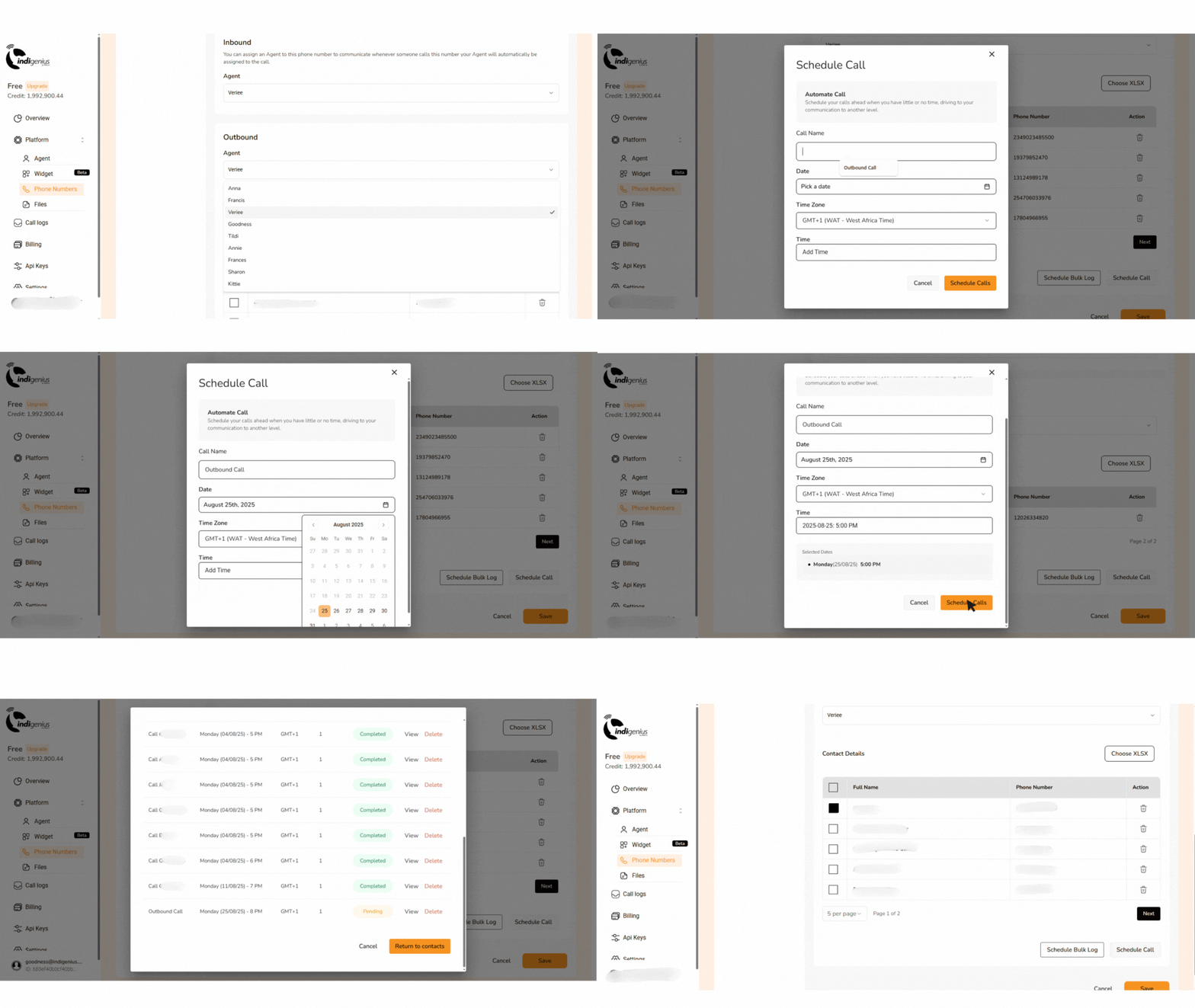
- Set your phone number and agent
- Select the phone number you want to initiate the outbound call with.
- Select the agent you want to initiate the call.
- Upload contacts
- Upload the phone numbers you want to call as a
.csvor.xlsxfile. - Select the contacts you want to call from your uploaded list.
- Upload the phone numbers you want to call as a
- Schedule the call
- Input your campaign name.
- Select the date you want to initiate the call.
- Choose the time zone your contacts are located in.
- Select the time(s) you want the call deployed (multiple times can be selected for bulk campaigns).
- Track your calls
- Visit Schedule Bulk Log to view the status of your bulk schedule.
- Visit Schedule Task Log to view the status of each call in the bulk schedule.